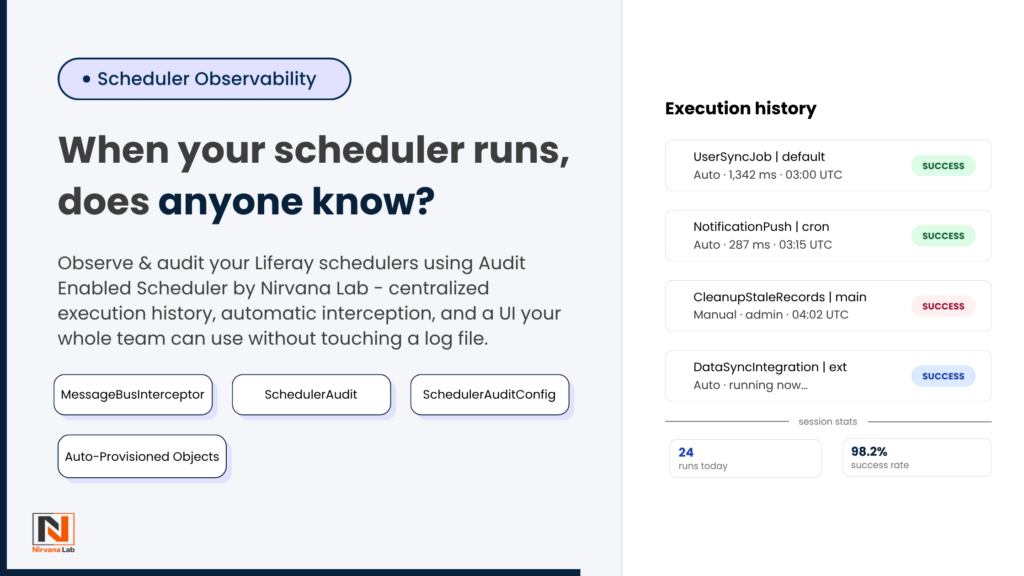
When your scheduler runs, does anyone know?
Observe and Audit your Liferay scheduler using audit-enabled-scheduler
I’m working on a Liferay project we have around a many schedulers running in the background for syncing users, cleaning up stale records, pushing notifications. This are critical. And for a long time, the only way to know if one had actually run was to check through server logs.
That was ok until it not break anything. One day A user sync had apparently failed overnight. When did it fail? How many times? Was it a one-off? Nobody knew. We spent many hours correlating log timestamps and deployment windows to check together what happened. That should be done in few minutes.
“Was it a one-off? Nobody knew. We spent two hours correlating log timestamps to piece together what happened.”
The problem with how most teams handle this
Mostly Liferay projects handle scheduler visibility the same way. By checking Dispatch UI you what’s configured but not much about what actually happened like its run properly, any error throwns or what. You add some log statements inside the job itself. You ask the dev team. Sometimes you just wait and see if the problem apear again.
The frequent questions mostly ask are:
- Which scheduler ran – and did it run automatically or did someone manually trigger it?
- When did it start and when did it finish?
- Did it succeed or fail?
- How long did it take?
- What is the next planned run?
- Can someone who isn’t a developer look this up without touching the server?
None of this is complicated stuff to ask for. But if you don’t have a proper tracking system in place, even one of these questions takes way more work than it should. That’s exactly the problem the audit-enable-scheduler module is built to fix.
What the module actually does
At a high level, the module gives you four things:
Auto-provisioned audit objects. On activation, the module creates two Liferay Objects for each company — SchedulerAudit and SchedulerAuditConfig — so there’s no manual setup required. Configuration and execution history are kept separate, which makes both easier to manage.
Selective audit enablement. You don’t audit every scheduler by default, because that would be noisy. Instead, each scheduler is identified by a composite key (schedulerName|jobGroup) and you enable audit only where its required. Everything else continues running normally as it is.
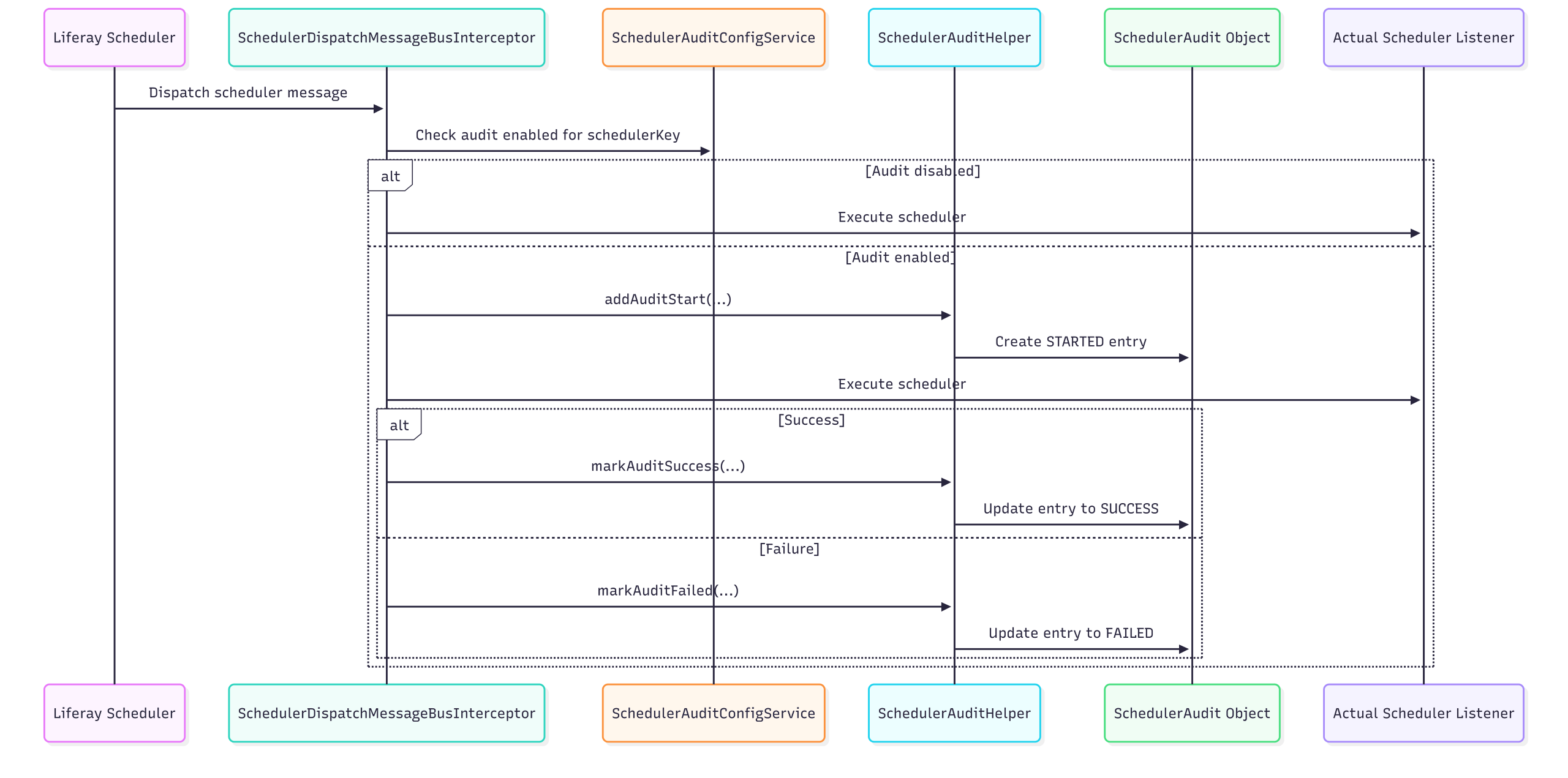
Automatic execution interception. This is main part. Instead of asking every developer to add custom logging inside each job, the module registers a high-priority MessageBusInterceptor at the scheduler dispatch destination. When a scheduler fires, the interceptor catches it, checks whether audit is enabled, creates a STARTED record, lets the actual job run, then updates that same record to SUCCESS or FAILED. Duration and next run time are stored alongside the result.
A UI for browsing and inspecting history. A dedicated portlet lets users list schedulers, check audit status, search, open run history, and review details — without touching a log file.
What gets stored for each run
For every audited execution, the module captures:
- Scheduler name and job group
- Job status: STARTED, SUCCESS, or FAILED
- Whether it was a manual or automatic run
- Who triggered it
- Start time, end time, and last run time
- Next scheduled run time
- Duration in milliseconds
- Details or failure message
That’s exactly what you need during a production support call and it’s in a structured record, not scattered across log output.
How the two execution flows work
End-to-end architecture

Automatic runs
This is the simple way. Liferay triggers the scheduler on its configured schedule. The interceptor picks it up, checks whether audit is enabled for that scheduler key, and if its enabled then its creates a STARTED/ entry, lets the real listener execute, then updates the entry to SUCCESS or FAILED with full timing data.
If audit isn’t enabled for that scheduler, nothing changes. The job runs exactly as it always did.
Liferay triggers scheduler
→ Interceptor checks audit config
→ Audit disabled: job runs normally
→ Audit enabled:
Create STARTED entry
Execute scheduler listener
Update entry → SUCCESS or FAILED
Store duration + next run time
Automatic scheduler workflow

Manual “Run Now” runs
This one surprised me during development. Manual executions go through a different path of SchedulerResponseManager rather than the standard dispatch flow, so a plain interceptor only not enough.
The module handles this by extending the MVC action command that handles the Run Now button. When a user clicks it:
- A manual audit entry is created before execution starts
- The run is flagged as isManualRun = true
- A referenceId is stored in thread-local context
- The scheduler executes through the response manager
- The interceptor picks up that execution and updates the same audit record
- If the run fails immediately, the entry is marked as failed right away
The result is covers the full lifecycle from the moment someone clicked the button to the moment the job finished.
Manual Run Now workflow

The architecture in plain terms
The whole thing is built around a single-record lifecycle per run. A unique referenceId ties the start and end of a run together. The module creates one object entry when execution begins and updates that same entry when it ends. There’s no scatter across multiple records — history is straightforward to read and query.
The two custom objects — SchedulerAuditConfig and SchedulerAudit used for provisioned automatically and live inside Liferay’s object framework. That means they work with Liferay’s standard APIs, permissions, and data management tooling out of the box.
The portlet sits on top of this and surfaces everything through a UI. Users can list available schedulers, see which ones have audit enabled, search, open execution history for a specific scheduler, and drill into individual run details.
Installing it
The module can be deployed in two ways depending on how your team packages things.
As an LPKG:
- Obtain the .lpkg file
- Copy it into Liferay’s deploy folder
- Wait for Liferay to install and deploy the contained modules
- Confirm the application and its modules are active
- Verify the audit objects are available after startup
Adding the portlet to a page:
Once deployed, edit any Liferay page, open the Widgets panel, search for Audit Enabled Scheduler, drag it onto the page, and publish. Thats all and users can start managing audit config and viewing history from there.
Quick post-install checklist:
- Module is deployed and active
- SchedulerAudit object exists
- SchedulerAuditConfig object exists
- Audit Enabled Scheduler widget appears in the page builder
- Widget loads correctly for signed-in users
- Enabling audit for a scheduler creates history on the next run
Who this actually helps
For developers, the biggest win is not having to add one-off logging logic inside every scheduler implementation. Audit configuration, persistence, interception, and visualization are all are at one place. Scheduler code stays clean. New jobs get audit start as soon as you enable audit so no extra work per job.
For QA and support users, the biggest win is visibility without server access. They don’t need to ask a developer whether a scheduler ran. They don’t need to guess why a manual trigger didn’t behave as expected. They can open the portlet, find the scheduler, and look at the history.
This module is especially useful when you have:
- Integration schedulers syncing data with external systems
- Critical business jobs where failures need to be visible quickly
- Scheduled cleanup or maintenance tasks
- Multiple environments where teams want comparable visibility
- Business or support users who need history without log access
- Frequent use of Run Now in testing, QA, or support scenarios
Is it worth the effort?
If your project has any schedulers and want to track work of that scheduler ,You can use this module. The pattern is lightweight, selective audit, structured history, a UI that doesn’t require log access. It’s not much work, but neither is untangling a production incident at 11pm because nobody can tell you whether a sync job actually ran.
The other thing I’d say: centralizing this concern pays off over time. Configuration in one place, audit persistence in one place, execution interception in one place. You’re not copy-pasting logging logic into every background job you write. And when something does go wrong, your support team can look it up themselves.
If you want your Liferay schedulers to be observable instead of opaque, audit-enable-scheduler is a practical pattern worth considering — selective audit enablement, centralized run history, and a UI that makes scheduler troubleshooting significantly easier for developers and non-developers alike.
Frequently Asked Questions
Do I need to enable audit for every scheduler?
Not really. In fact, it’s better if you don’t. Most schedulers are routine and don’t need tracking. You can selectively enable audit only for the important ones — like integrations, sync jobs, or anything business-critical.
Will this slow down my scheduler executions?
In normal cases, no noticeable impact. The module just creates and updates a record around the execution. Unless you’re running extremely high-frequency jobs (like every few seconds), performance should stay fine.
Can non-developers use this module?
Yes, that’s actually one of the main benefits. QA or support teams can check scheduler history directly from the UI without needing access to logs or servers. That saves a lot of back-and-forth.
What happens if a scheduler fails midway?
The audit entry is still updated. It will show as FAILED, along with whatever error message is available. So even partial or unexpected failures are captured properly.
Does it track manual “Run Now” executions as well?
Yes, and that’s handled separately under the hood. Manual runs are marked clearly, including who triggered them. So you can easily tell if something was scheduled or manually executed.
Is there any setup required after deployment?
Not much. The objects are created automatically. You just need to add the portlet to a page and enable audit for the schedulers you care about. That’s it.
Can I clean up old audit records?
Right now, it stores history as-is. If you expect a lot of data, you might want to add a cleanup scheduler later to archive or delete old records.
What if I already have logging inside my schedulers?
That’s fine, but this replaces the need for most of it. Instead of digging through logs, you get structured data in one place. You can still keep logs if needed for deeper debugging.